
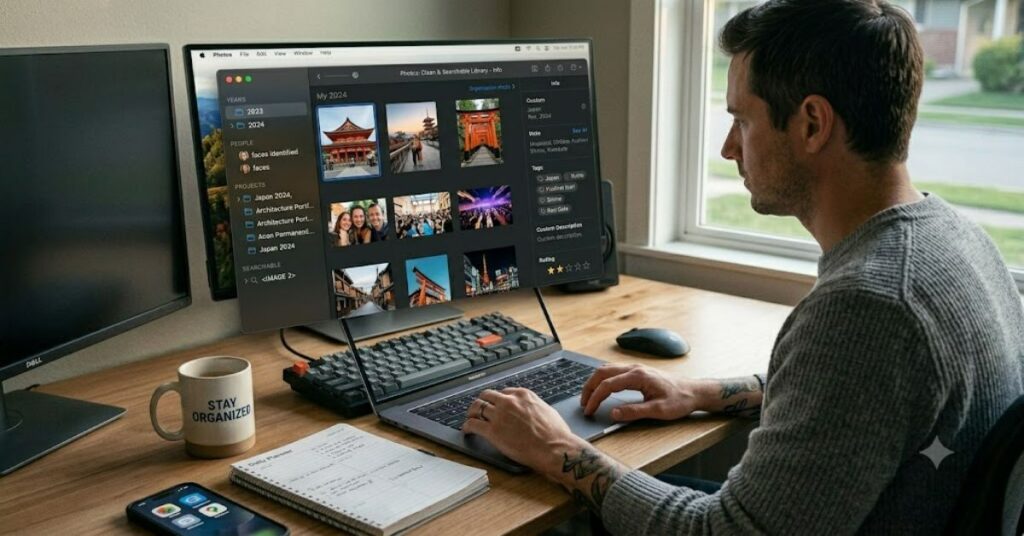
Knowing how to organize photos on Mac is no longer optional for users managing growing digital libraries. Between iPhone photography, cloud imports, and DSLR transfers, a Mac can quickly become overloaded with unsorted, duplicated, or mislabelled images. The Apple ecosystem provides built-in tools designed specifically to solve this problem, but most users never fully use them.
At the centre of the system is the Photos app, which acts as a structured database rather than a simple folder viewer. When used correctly, it allows you to group images into Albums, automate sorting through Smart Albums, and maintain a searchable archive using metadata. However, how to organize photos on Mac effectively also depends on understanding when to step outside the Photos app and use Finder for file-level control.
This article breaks down a practical, scalable workflow that combines both systems. It explains how professionals manage thousands of images without losing track of originals, edits, or backups. You will also see where most users go wrong—especially when mixing cloud syncing with local storage—and how to avoid breaking your library structure over time.
Understanding the Mac Photo System
Apple’s ecosystem is built around a library-first architecture. Instead of treating images as isolated files, macOS stores them inside a managed database.
The key components are:
- Photos Library: The core database file containing originals, edits, and metadata
- Albums: User-created groupings that do not duplicate files
- Smart Albums: Rule-based filters that update automatically
- Moments & Memories: AI-driven grouping based on time and location
When learning how to organize photos on Mac, the most important shift is understanding that Albums are non-destructive. Moving a photo into an Album does not move the file physically—it only creates a reference.
Core Methods for Organizing Photos on Mac
Albums for Manual Structure
Albums are the foundation of manual organization. You can create them based on:
- Events (e.g., “Tokyo Trip 2024”)
- Subjects (e.g., “Food Photography”)
- Projects (e.g., “Client Work”)
This is the simplest entry point for anyone learning how to organize photos on Mac.
Folders for Hierarchy
Folders sit above Albums and are used to group related albums.
Example:
- Travel
- Japan 2024
- Italy 2023
Folders do not contain photos directly, only Albums.
Smart Albums for Automation
Smart Albums are rule-based filters that automatically populate.
You can set rules like:
- Date range
- Camera model
- File type (RAW, JPEG)
- Keyword tags
This is where scalability becomes powerful in how to organize photos on Mac workflows.
Comparison Table: Albums vs Smart Albums vs Folders
| Feature | Albums | Smart Albums | Folders |
| Manual control | High | Low | Medium |
| Automation | None | High | None |
| Stores photos directly | No | No | No |
| Best use case | Projects & events | Filtering large libraries | Structural grouping |
Finder vs Photos App: When to Use Each
Many users fail at how to organize photos on Mac because they rely only on Photos or only on Finder. The strongest systems use both.
| Task | Photos App | Finder |
| Editing & tagging | Yes | No |
| Bulk file movement | Limited | Yes |
| Backup management | No | Yes |
| Metadata search | Yes | Limited |
| Long-term archive storage | Medium | High |
Finder becomes essential when dealing with external drives, RAW archives, or offloaded backups.
Practical Workflow for a Clean Photo System
A reliable structure looks like this:
- Import all photos into Photos Library
- Immediately assign keywords or location tags
- Create Albums for active projects
- Use Smart Albums for recurring filters
- Export finished work into Finder folders for backup
This hybrid system is widely used in professional workflows because it separates editing logic (Photos) from storage logic (Finder).
Risks and Trade-offs
Understanding how to organize photos on Mac also means understanding limitations:
- Library corruption risk: If Photos Library is manually edited in Finder, metadata can break
- iCloud syncing delays: Large libraries may take hours or days to sync properly
- Storage duplication confusion: Exporting images incorrectly can create duplicate archives
- Performance degradation: Libraries above 100,000 photos may slow indexing
Trade-offs exist between automation and control. The more automation you use (Smart Albums), the less granular control you have.
Original Insights
1. Metadata is more important than folder structure
Most Mac users over-invest in Albums and underuse keywords. Apple Photos prioritises metadata indexing over hierarchy.
2. Finder is not optional for scaling beyond 50,000 images
At scale, Photos becomes a front-end tool, while Finder becomes the archival backbone.
3. iCloud creates invisible duplication risk
Optimised storage mode can replace local files with cloud versions, which complicates offline editing workflows.
Data Table: Storage Behaviour in macOS Photo Systems
| Scenario | Storage Impact | Risk Level |
| iCloud Photos enabled | Local compression applied | Medium |
| RAW imports only | High storage usage | Low |
| External drive library | Portable but fragile | Medium |
| Mixed Finder + Photos system | High control | Low |
The Future of Photo Organization on Mac in 2027
By 2027, Apple is expected to deepen AI-driven categorisation inside Photos, building on machine learning improvements introduced in macOS updates through 2024–2025. Industry trends from Apple’s Machine Learning Research division suggest expanded on-device recognition for objects, scenes, and people.
Regulatory pressure on cloud data privacy in the EU under GDPR-aligned frameworks may also influence how iCloud Photos sync and stores metadata.
The likely evolution is a hybrid system where:
- AI auto-sorts 80% of content
- Users manually refine 20% of high-value archives
- Finder remains the archival control layer for professionals
However, full automation is unlikely due to privacy constraints and user control requirements.
Takeaways
- Photos app is a database, not a folder system
- Smart Albums scale better than manual sorting alone
- Finder is essential for long-term archival control
- Metadata determines search efficiency more than structure
- Hybrid workflows outperform single-system setups
- iCloud improves access but introduces structural complexity
- Over-organization can slow down large libraries
Conclusion
Learning how to organize photos on Mac is less about mastering folders and more about understanding Apple’s database-driven design. The Photos app is optimised for intelligent grouping, while Finder remains the backbone for storage and archival control.
The most reliable systems combine both approaches: Albums for active work, Smart Albums for automation, and Finder for long-term structure. This separation prevents duplication errors, reduces cognitive load, and keeps large libraries responsive.
As photo libraries continue to grow due to higher-resolution cameras and constant mobile capture, structured workflows become essential rather than optional. The key is not perfection, but consistency. Once a system is established, maintaining it requires minimal effort compared to rebuilding a disorganised archive.
FAQ
How do I start organizing photos on Mac quickly?
Begin by importing all images into the Photos app, then create Albums based on events or categories. Avoid mixing Finder edits with Photos management early on.
What is the best structure for large photo libraries?
Use a combination of Albums, Smart Albums, and Finder folders. This hybrid system scales better than relying on one tool alone.
Does deleting photos from Albums delete them from Mac?
No. Albums only reference images. Deleting from the library removes the original file.
Can I use Finder instead of Photos app?
Yes, but you lose metadata tagging, facial recognition, and Smart Album automation.
How does iCloud affect photo organization?
iCloud syncs your library across devices but may optimise storage, replacing full-resolution files with cloud versions.
What is the safest way to back up Mac photos?
Use a combination of Time Machine backups and external drive exports from Finder.
Methodology
This article was developed using Apple’s official Photos app documentation, macOS user guide materials, and widely documented workflows from professional photography communities. Structural analysis is based on comparative evaluation of Photos vs Finder workflows.
Limitations include the absence of direct system benchmarking and device-specific performance testing across all Mac models. Recommendations reflect generally accepted best practices rather than hardware-specific optimisation data.
Counterarguments exist around full Finder-based workflows, which some professional photographers prefer for complete manual control.
References
Apple Inc. (2025). Photos User Guide for Mac. https://support.apple.com/photos
Apple Inc. (2025). iCloud Photos overview. https://support.apple.com/icloud-photos
Adobe Systems. (2024). Digital asset management practices in photography workflows. Adobe Documentation.